Hi everyone,
We are excited to launch StakeArb, an ultimate companion tool designed for automated sports arbitrage, real-time odds monitoring, and risk management specifically integrated with Stake!
StakeArb provides a premium, data-driven dashboard to secure guaranteed profits from odds discrepancies across sportsbooks.
🔥 Key Features
1. ⚡ Direct Stake Connection (Secure & Fast)
No complex API key creations or password entries required. Use our drag-and-drop StakeArb Connect bookmarklet to securely link your session in one click. StakeArb automatically syncs your wallet balance (supporting INR, USDT, BTC, ETH, and more).
2. 🎯 Intelligent Live Monitors
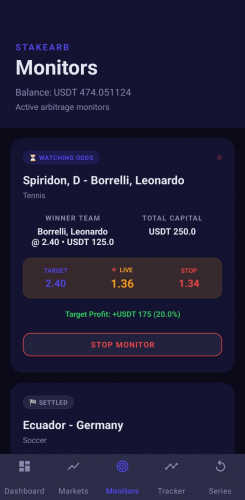
Set up active watchers that scan market lines and odds every 3 seconds via high-speed serverless Cloudflare Workers. Customize your target profit targets, stop-loss percentages, and initial stake limits.
3. 📊 Detailed Bet Tracker & P&L History
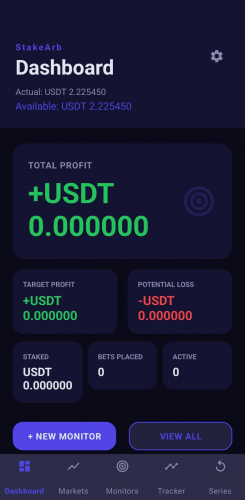
Track your active and settled bets in a clean feed. Monitor won/lost ratios, real-time ROI, and overall portfolio P&L metrics with dynamic ticker updates.
🎁 Try It Now (Free 2-Day Trial!)
We are offering a Free 2-Day Trial to let you explore all premium features risk-free.
Message our Telegram Bot: @StakeArbSubBot
https://t.me/StakeArbSubBot
Tap /start to immediately grab the latest Android APK installation file.
Activate your free trial license key directly within the app and start monitoring.
We'd love to hear your feedback, feature requests, or questions below! 🚀
📖 StakeArb User Manual
1. Connecting Your Account
StakeArb uses a secure bookmarklet system to authenticate with your Stake account.
Navigate to the Settings page in the StakeArb app.
Drag the ⚡ StakeArb Connect button to your browser's bookmarks bar.
Log into your account on Stake (e.g., Stake.com or Stake.ac).
Click the bookmarklet you saved. It will automatically capture your session token and securely redirect you back to StakeArb, fully connected.
2. Selecting Your Currency
StakeArb supports multi-currency displays.
Go to Settings and select your preferred display currency: INR, USDT, BTC, or ETH.
Your balance, stakes, and P&L readouts will convert and display in your selected currency.
3. Markets Tab & Creating a New Arbitrage Monitor
The Markets tab is where you browse live and upcoming fixtures, inspect real-time odds, and initiate monitoring.
A. Finding a Fixture
Sport Filters: Choose from sports tabs like Soccer, Cricket, Tennis, Basketball, NFL, CS2, and Dota 2.
Search Bar: Type team or league names to filter results instantly.
LIVE Filter: Toggle the 🔴 LIVE filter button to view matches currently in progress.
B. Types of Winner Markets Supported
2-Way Winner (H2H / Money Line): Typical in games without draws (e.g., Tennis, Basketball, CS2). You back either Player/Team 1 or Player/Team 2.
1X2 Winner (3-Way Match Winner): Typical in Soccer. Includes Home (1), Draw (X), and Away (2) outcomes. Selecting a 1X2 market opens Double Chance Mode options.
C. Setting up the Monitor (Betting Modes & Inputs)
When creating a monitor, you first select your Betting Mode:
Hedge Mode (Standard Arbitrage):
The initial bet is placed immediately. The bot monitors the opposite selection and places the hedge bet once the target profit odds are met.
Initial Stake: The stake amount for your starting leg.
Target ROI %: The target profit percentage you want to lock in.
Stop Loss %: The maximum percentage loss you are willing to tolerate.
Watch-Only Stop-Loss Toggle: If enabled, the bot will not auto-place the profit hedge bet (you must do it manually). However, if the stop-loss condition is breached, the bot will still automatically place the stop-loss bet to protect your bankroll from severe losses.
Odds Trigger Mode:
Used to monitor the odds of the initial outcome and execute a bet automatically when the odds move past a threshold.
Trigger Odds Above: The bot auto-places the initial bet when the odds rise to or exceed this value.
Trigger Odds Below: The bot auto-places the initial bet when the odds drop to or fall below this value.
D. Dynamic Calculation Preview
For Hedge Mode, the dialog calculates and displays:
Initial Bet: Stake and odds of the starting selection.
Hedge Bet (Auto): Required stake and maximum odds limit to lock in profit.
Stop-Loss Bet: Stake and minimum odds threshold to trigger stop-loss protection.
Total Capital / Guaranteed Profit: The total sum staked and the net yield if either selection wins.
4. Monitors Tab: Tracking Active Trades
The Monitors tab lists all configured arbitrage monitors.
A. Status Explanations
ACTIVE: Currently scanning live odds feeds (checks odds every 3 seconds).
PLACING: Submitting the bet to Stake.
TRIGGERED: Successfully matched and placed the hedge bet with guaranteed profit.
STOP_LOSS_TRIGGERED: Placed the stop-loss bet to limit exposure.
CANCELLED: Terminated by the user.
FAILED: The bet execution encountered an error.
B. Display Cards
Each active monitor card displays:
Initial Bet Summary: Selection name, odds, and stake amount.
Hedge Bet (Auto): Target Selection name, required odds, and required stake.
Thresholds: Displays the Target Odds and Stop Odds side-by-side.
Live Odds: Displays the current live odds value. An animated green dot pulses next to it when the match is live.
5. Series Tab: Advanced Multi-Round Betting
A Series Bet allows you to allocate a starting bankroll over a set number of consecutive betting rounds, rolling profits forward.
A. Automatic vs. Manual Modes
AUTOMATIC: The bot automatically scans qualifying fixtures and places initial and hedge bets within your specified odds filters.
MANUAL: The bot does not pick matches. You browse fixtures and manually add them to your Manual Queue. The system then manages stakes and auto-hedges according to your series parameters once the round starts.
B. Configuration Inputs Explanations
Series Mode Type:
Standard Hedge: Configures standard arbitrage and stop-loss hedges.
Odds Trigger: Runs the series rounds using above/below trigger thresholds.
Odds Range (Min/Max): The qualifying odds range for the favored selection.
SL (Stop-Loss) Trigger Odds: The opponent odds threshold that triggers a protective hedge.
Starting Balance: The capital bankroll allocated for the series.
Total Rounds: Target number of rounds to play (auto-mode).
Bet % per Round: The percentage of the current balance to stake on the active round.
C. Reviewing Rounds Performance
Tap the Rounds button on a Series Card to view a detailed table containing the round number, event name, odds (Initial/Hedge), stake amount, status outcome (WIN/LOSS), and net P&L.
6. Tracker Tab: Odds Tracking & Exporting
A. Tracking a Match via Bookmarks
To monitor the odds trajectory of specific selections:
Go to the Markets tab.
Browse or search for the match you want to track.
Tap the Bookmark / Track icon (bookmark symbol) directly on the fixture card.
The match is instantly added to your Tracker screen. You do not need to manually enter IDs or outcome UUIDs.
B. Odds Movement Charts
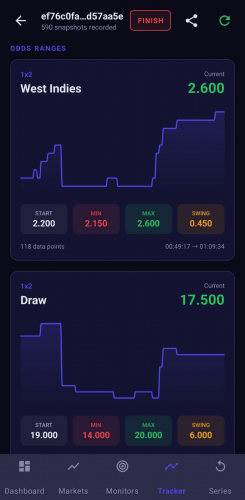
Open any tracked match from the list to view its detail screen.
Under the selections, the app displays Odds Movement Charts (generated via Jetpack Compose). These line charts map the historical odds path, swing volatility, and minimum/maximum values recorded during tracking.
C. Exporting Tracking Data (CSV Sharing)
Open the detail view of any tracked match.
Tap the Export button in the top toolbar.
The app compiles all logged odds snapshots into a .csv spreadsheet file.
It opens the standard Android share dialog, allowing you to instantly share the file via Telegram, WhatsApp, email, or save it to your device storage.
Message our Telegram Bot: @StakeArbSubBot
https://t.me/StakeArbSubBot



.thumb.jpeg.79daf4941af1d23b385cd8c9bf08a404.jpeg)
.thumb.jpeg.8d4c684b0bab7cb910bf3b0780035c19.jpeg)
.thumb.jpeg.d7846321d8c8807b3ede4b75402f6a2d.jpeg)
.thumb.jpeg.341735ab00d80752bdf3a4798eae476a.jpeg)
.jpeg.7ad8f9227788d62ceaa5e4f627540c58.jpeg)

.jpeg.d897a889599eb400707c5ad779a46009.jpeg)
.jpeg.9cf4f0efd6201e17da808ed2566e3f5e.jpeg)

.jpeg.5bdff49f6c22d15d51b8290e44d6c076.jpeg)
